
Pdf to Picture Converter
Need a page of a PDF as a picture — to post on social media, drop into a slide, send in a chat app that doesn’t preview PDFs, or print as a photo? Open the PDF here, choose PNG or JPG and the resolution, pick the pages, and each page is drawn in your browser and saved as an image. Nothing is uploaded, so it is safe for private documents.
- Free to use
- No sign-up
- Runs in your browser
PDF to image converter
Drop a PDF here or
Processed on your device · nothing is uploaded
PDF Workflow Printables
Printable document workflow kit: a PDF conversion settings cheat sheet, image size and DPI reference, a document review checklist and a file naming guide.
- DPI reference (PDF)
- Format cheat sheet (PDF)
- Review checklist (PDF, DOCX)
- Naming guide (PDF)
Formats: PDF, XLSX, DOCX. Instant download after payment (link valid 72 hours, up to 5 downloads). AI-assisted: the templates were drafted with AI help and reviewed and laid out before publishing.
$5.00 USD, one-time 4 files · about $1.25 each
- Instant download
- 7-day refund
- Secure checkout by Stripe
7-day money-back guarantee. Full refund within 7 days of purchase, even after you download.
Free sample: DPI Size Reference (PDF, 52 KB)
Full refund within 7 days — see the refund policy and license.
Free printables
Single sheets you can print right now, no sign-up. The full pack adds every sheet in one download plus the editable files.
 PDF Image File Naming Guide
How to convert a PDF to pictures
- Drop a PDF onto the box, or click “choose a PDF”.
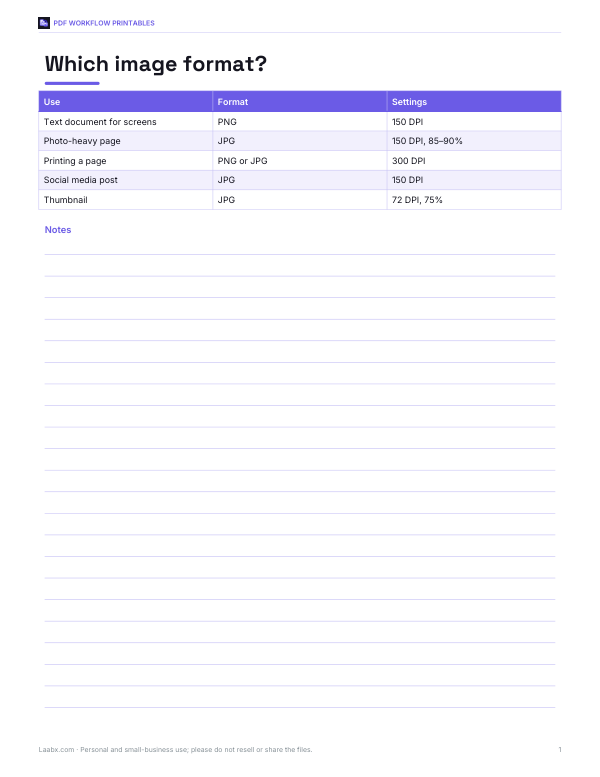
- Choose PNG or JPG and the resolution — 150 DPI suits most screens, 300 DPI suits printing.
- Type the pages you want, such as “1-3, 5”, or leave it blank for all pages.
- Press Convert pages. Each page appears as a preview with its own download link.
- Download single pages, or press “Download all as ZIP” to get every image in one file.
The PDF is read and drawn by JavaScript on your device. No file is uploaded, and closing the tab clears everything from memory.
PNG or JPG?
| Format | Best for | Notes |
|---|---|---|
| PNG | Text, diagrams, forms, screenshots | Lossless, crisp edges, larger files |
| JPG | Photos, scanned pages, brochures with pictures | Much smaller files; slight blur around text at low quality |
If a page is mostly text, PNG usually looks sharper; if it is mostly photographs, JPG at 85–90% quality gives a far smaller file with little visible difference.
Choosing the resolution
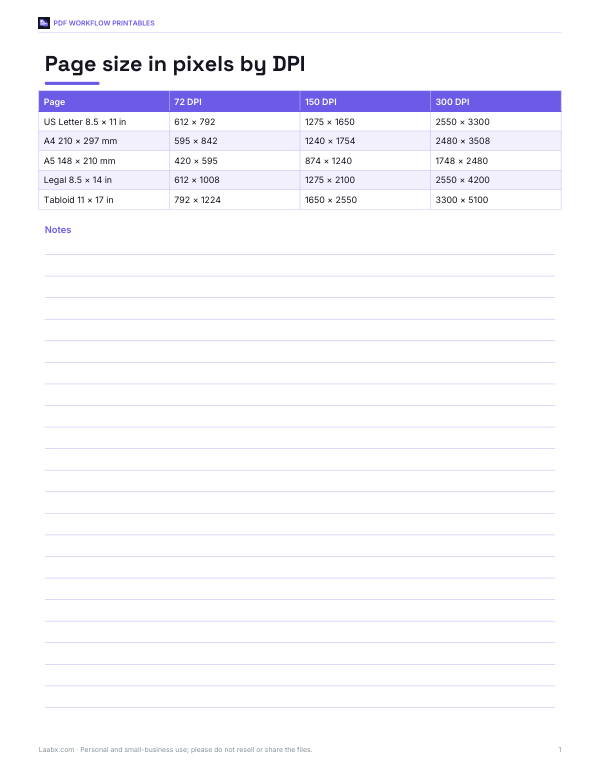
| DPI | US Letter page becomes | Good for |
|---|---|---|
| 72 | 612 × 792 px | Thumbnails and quick previews |
| 96 | 816 × 1056 px | Web pages at normal size |
| 150 | 1275 × 1650 px | Sharing, chat apps and slides |
| 200 | 1700 × 2200 px | Zooming in on detail |
| 300 | 2550 × 3300 px | Printing as a photo or poster |
Pixels = page size in inches × DPI. An A4 page at 150 DPI is about 1240 × 1754 pixels. Very large pages are scaled down automatically to keep memory use reasonable.
Worked example
A teacher has a 12-page worksheet PDF and wants pages 2 and 5 as pictures for a slideshow. They open the PDF, choose PNG at 150 DPI and type “2, 5” in the pages box. The converter draws two images of 1275 × 1650 pixels (the PDF uses US Letter pages), each a few hundred kilobytes, which drop straight into the slides. For a printed handout of page 5 they convert it again at 300 DPI.
What this converter can and can’t draw
- It draws text, lines, shapes, fills, colour gradients and embedded images, including JPEG photos, transparency masks and nested drawing groups.
- Text is drawn with fonts installed on your device that match the PDF’s font style (serif, sans-serif or monospace), at the exact positions and sizes in the PDF — so layout matches, though letter shapes can differ slightly from an unusual embedded font.
- Some advanced features — JPEG 2000 and fax-compressed images, tiling patterns, blend modes and some symbol fonts — are simplified or shown as a grey box.
- Encrypted or password-protected PDFs can’t be opened.
- For pixel-perfect output of complex design files, use a full PDF editor; for everyday documents, worksheets, scans and reports this converter works well.
Scanned PDFs
A scanned PDF is usually one photograph per page, often with an invisible text layer added by OCR so you can search it. The converter draws the scanned image and skips the invisible text, so the picture looks exactly like the scan. If you only want the original scanned photos at their native resolution, the embedded images can also be extracted directly with an image-extraction tool.
Privacy and file size
Your PDF never leaves your device, which makes this suitable for bank statements, contracts and ID documents. Images are created in memory; the ZIP download stores them without recompressing. A 20-page document at 150 DPI in PNG is often 5–20 MB in total, while JPG at 85% might be a quarter of that.
How the page is drawn
A PDF page is a list of drawing instructions: move here, draw a line, fill this shape blue, place this image, write these letters in this font at this size. The converter reads the PDF structure, follows those instructions on an HTML canvas at the resolution you choose, and saves the canvas as an image. Because it follows the same instructions as a PDF reader, positions, sizes, colours and images come out where they should; the main difference is that text uses a matching font installed on your device instead of the font embedded in the PDF.
Tips for the best results
- Use PNG for pages with small text so letters stay crisp.
- Choose 200–300 DPI if you plan to zoom in or print.
- For very long documents, convert a page range at a time to keep memory use down on phones.
- If a page looks wrong, compare it with your PDF reader — complex design files may need a full PDF editor.
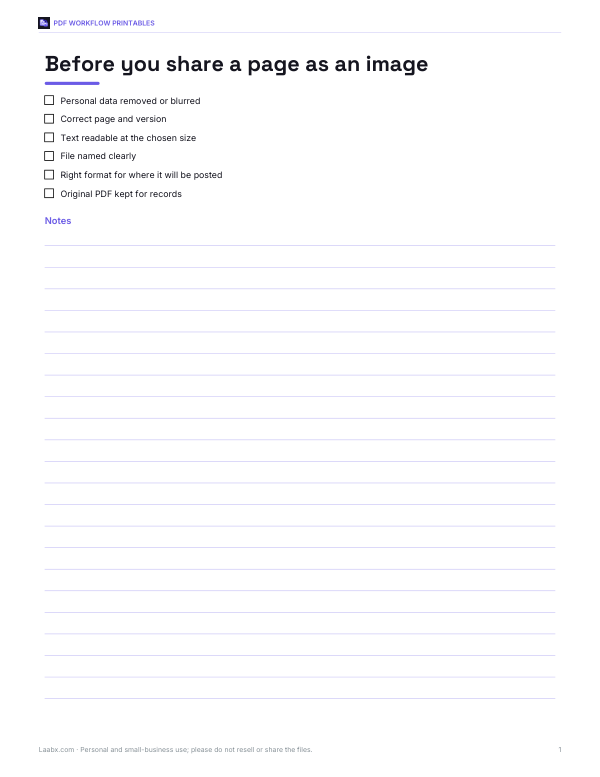
- Rename the downloaded files if you plan to share them.
Common uses
- Posting a page or poster on social media, where PDFs aren’t accepted.
- Adding a page to a presentation, document or website.
- Sending a page in chat apps that only preview images.
- Printing a single page as a photo.
- Creating thumbnails of a report’s pages.
Frequently asked questions
How do I convert a PDF to a picture?
Open the PDF, choose PNG or JPG and the resolution, and press Convert pages.
Is my PDF uploaded?
No, it is read and drawn in your browser.
Can I convert only some pages?
Yes, type page numbers or ranges such as 1-3, 5.
What resolution should I use?
150 DPI for screens, 300 DPI for printing.
Can I download all pages at once?
Yes, as a ZIP file.
Does it work with password-protected PDFs?
No, remove the password first in a PDF app you trust.
Why does the text look slightly different?
The converter draws text with a matching font installed on your device rather than the PDF’s embedded font; positions and sizes are the same.